|
🔒 Secure Checkout
|
⭐ 4.8/5 — 1,247 Reviews
|
🚚 Free Shipping on Orders $35+
|
↩️ 30-Day Returns
By PrintHelp Shop Team · Updated June 2025 · 10 min read
HP Printer Cartridge Replacement: The Complete Guide (2026)
Whether your HP printer is flashing a low-ink warning or you’ve just run dry mid-document, this guide walks you through exactly how to replace HP ink and toner cartridges—safely, quickly, and without wasting money on the wrong supplies.
1. How to Replace an HP Ink Cartridge (Step-by-Step)
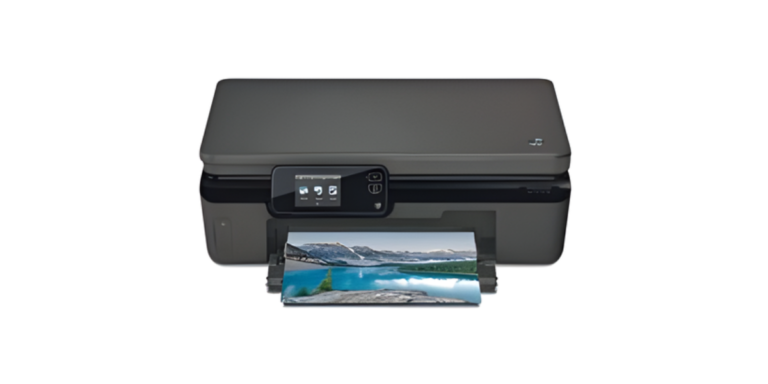
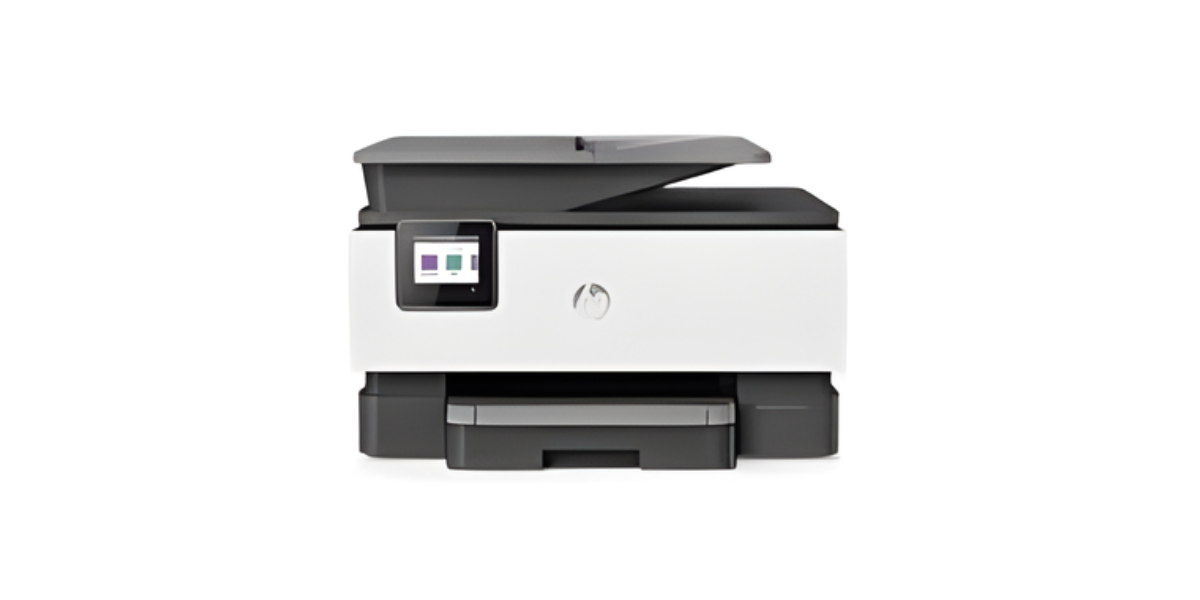
HP inkjet printers—including the DeskJet, OfficeJet, ENVY, and PhotoSmart series—all follow a similar cartridge replacement process. Here’s how to do it correctly:
🖨️ Step-by-Step: Replacing HP Ink Cartridges
- Turn on your printer. Never replace cartridges with the printer off—the carriage won’t move to the access position.
- Open the cartridge access door (usually on the front or top of the printer). Wait for the carriage to slide to the center.
- Press down on the old cartridge and pull it toward you to release it from the slot.
- Unbox your new cartridge and carefully remove all protective tape—including any tape over the ink nozzles and contacts. Do NOT touch the gold contacts or ink nozzles.
- Insert the new cartridge at a slight downward angle into the correct slot (black cartridges go on the right; tri-color on the left in most models).
- Push firmly until you hear a click.
- Close the access door. Your printer will automatically align the cartridge.
- Print a test page to confirm the installation was successful.
For a visual reference, HP’s own support documentation provides model-specific diagrams. You can also find our HP printer setup guide for full first-time setup instructions.
⚠️ Pro Tip: Always store new cartridges upright and away from direct sunlight. Ink cartridges that sit unused for too long (6+ months) may dry out even before installation.
2. Replacing HP Toner Cartridges (LaserJet Printers)
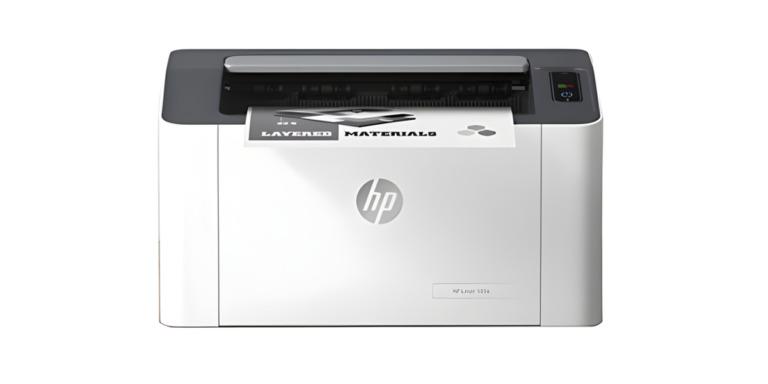
HP LaserJet printers use toner cartridges—not ink. Replacing a toner cartridge follows a slightly different process:
- Power on the printer and open the front panel door or top cover depending on your LaserJet model.
- Pull out the toner cartridge by gripping the handle firmly and sliding it straight out.
- Unbox the new toner cartridge. Shake it gently from side to side 5–6 times to distribute the toner evenly inside.
- Pull the orange or red sealing tape off the cartridge completely.
- Slide the new toner cartridge into the slot until it locks into place.
- Close the door and allow the printer to initialize (this may take 30–60 seconds).
- Run a configuration page (via printer menu) to confirm successful installation.
Need a replacement toner right now? Visit our HP LaserJet toner cartridge catalog for same-day shipping options on popular models like the HP LaserJet Pro M404 and M479.
3. How to Find the Right HP Cartridge Number
Using the wrong cartridge number is one of the most common mistakes HP printer owners make. Here are four reliable ways to find the correct number:
- Check your current cartridge: The cartridge number is printed directly on the label of your existing cartridge (e.g., HP 65, HP 920XL, HP 206A).
- Check inside the printer: Open the cartridge access door—there’s usually a sticker listing compatible cartridge numbers inside.
- Look up your printer model: Find your printer’s model number on the bottom or back label, then use our HP cartridge compatibility checker.
- Use the HP Smart App: The app auto-detects your printer model and displays compatible cartridge numbers directly.
For a full list of HP cartridge numbers by printer series, see our HP cartridge number reference guide.
4. OEM vs. Compatible vs. Remanufactured Cartridges
When shopping for HP cartridges, you’ll encounter three types. Here’s what each means and which is right for you:
| Type | Print Quality | Cost | Warranty Safe? | Best For |
|---|---|---|---|---|
| OEM (Genuine HP) | ⭐⭐⭐⭐⭐ Excellent | $$$$ Highest | ✅ Yes | Photo printing, professional docs |
| Compatible (Third-Party) | ⭐⭐⭐⭐ Very Good | $ Lowest | ⚠️ Check terms | Everyday printing, high volume |
| Remanufactured | ⭐⭐⭐⭐ Good | $$ Moderate | ⚠️ Check terms | Eco-conscious, budget-friendly |
At PrintHelp Shop, we carry all three types—all quality-tested and backed by our 100% satisfaction guarantee. Browse our compatible HP cartridges collection to find your best match.
For an unbiased breakdown of compatible vs. OEM ink quality, PCMag’s independent cartridge comparison is an excellent reference. The U.S. consumer protection guidelines also confirm that using third-party cartridges cannot legally void your printer warranty under the Magnuson-Moss Warranty Act.
5. HP Cartridge Pricing Guide (2025)
Prices vary widely depending on cartridge type, yield, and whether you go OEM or compatible. Here’s what to expect:
| Cartridge | Printer Series | Page Yield | OEM Price | Compatible Price |
|---|---|---|---|---|
| HP 65 Black | DeskJet 2600, 3700 | 120 pages | ~$19.99 | ~$6.99 |
| HP 65XL Black | DeskJet 2600, 3700 | 300 pages | ~$33.99 | ~$10.99 |
| HP 910 Color Combo | OfficeJet 8000 Series | 315 pages (color) | ~$54.99 | ~$21.99 |
| HP 206A Toner (Black) | LaserJet Pro M283 | 1,350 pages | ~$49.99 | ~$18.99 |
| HP 206X Toner (Black) | LaserJet Pro M283 | 3,150 pages | ~$89.99 | ~$32.99 |
*Prices approximate. Check PrintHelp Shop’s current pricing for live deals and bundle discounts.
6. Troubleshooting Common HP Cartridge Issues
Even after a correct installation, you may run into issues. Here are the most common problems and how to solve them:
❌ “Cartridge Not Recognized” Error
Remove the cartridge and inspect it. Ensure all protective tape is removed. Gently clean the gold contact points with a dry lint-free cloth and reinstall. If the error persists with a compatible cartridge, check if HP’s dynamic security firmware update may be blocking it—you may need to roll back firmware or adjust printer settings. See our HP cartridge not recognized fix guide.
❌ Streaky or Faded Prints After Replacement
Run the printer’s built-in printhead cleaning cycle (Settings → Tools → Clean Printhead). Print 2–3 cleaning pages. If streaking continues after 3 cleaning cycles, the printhead may need deeper cleaning or the new cartridge may be defective.
❌ Ink Level Shows Empty on New Cartridge
Some HP printers cannot read ink levels from compatible cartridges and may display “0%” or “Unknown.” This is a display issue only—the cartridge will still print normally. Ignore the warning or use the HP Smart App to override level monitoring for third-party cartridges.
❌ Printer Won’t Print After Cartridge Change
Power cycle your printer (turn off, unplug for 60 seconds, replug and turn on). Ensure the cartridge access door is fully closed. Reopen the door and reseat both cartridges, making sure each clicks into place. If you need further assistance, our live printer support team is available 7 days a week.
🖨️ Ready to Order Your HP Cartridge?
Shop 200+ HP-compatible ink and toner cartridges. Guaranteed to work — or your money back.
✅ 30-Day Returns
✅ 4.8★ (1,247 reviews)
✅ 100% Guaranteed Compatible
Frequently Asked Questions
Written by the PrintHelp Shop Expert Team
Our team has helped over 50,000 customers resolve printer issues since 2015. Every guide is tested and reviewed by certified printer technicians. Questions? Contact our live support team.
🔎 50,000+ Customers Helped
📅 Updated June 2025
📚 Related Guides from PrintHelp Shop
- HP Printer Setup Guide: First-Time Installation
- HP LaserJet Toner Cartridge Catalog
- Compatible HP Ink Cartridges — Save Up to 60%
- Fix: HP Cartridge Not Recognized Error
- HP Cartridge Compatibility Checker Tool