HP Printer Driver Download & Install Support — Complete Guide 2026
Can’t get your HP printer recognized? Missing drivers crashing your print jobs? This is the only guide you’ll need — with direct download steps for Windows 11, 10, and macOS, plus expert help when DIY isn’t enough.
This guide walks you through downloading, installing, and troubleshooting HP printer drivers on both Windows and Mac — step by step, with no technical jargon. And if you’d rather have an expert handle it, PrintHelp.shop’s HP printer support team is available around the clock.
What Is an HP Printer Driver and Why Do You Need It?
An HP printer driver is a small piece of software that acts as a translator between your computer’s operating system and your printer. Without it, your PC or Mac has no idea how to send print jobs, adjust ink levels, scan documents, or manage print queues.
HP regularly releases updated drivers to fix bugs, improve compatibility with new operating systems (like Windows 11 or macOS Sonoma), and add features like wireless printing or duplex support. Using an outdated or wrong driver is one of the most common causes of HP printer errors.
How to Download & Install HP Printer Driver on Windows (11 / 10 / 8)
Follow these steps exactly to install the correct HP printer driver on any Windows PC:
1 Identify Your HP Printer Model
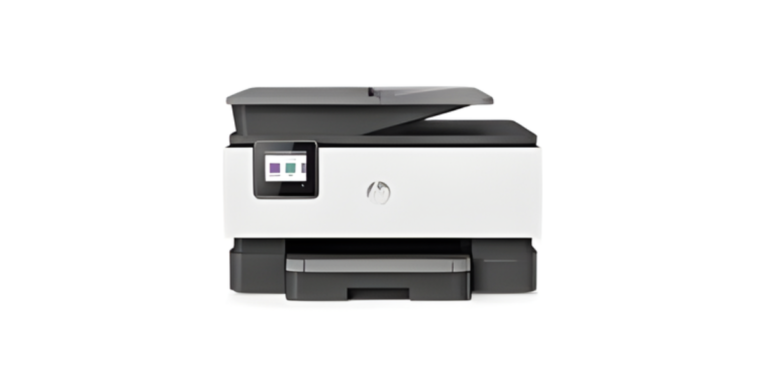
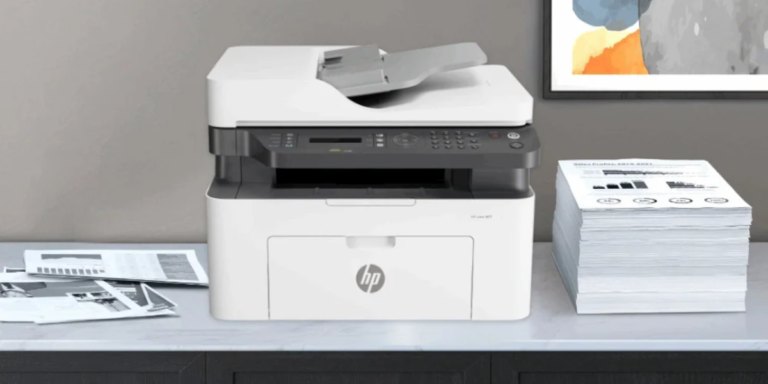
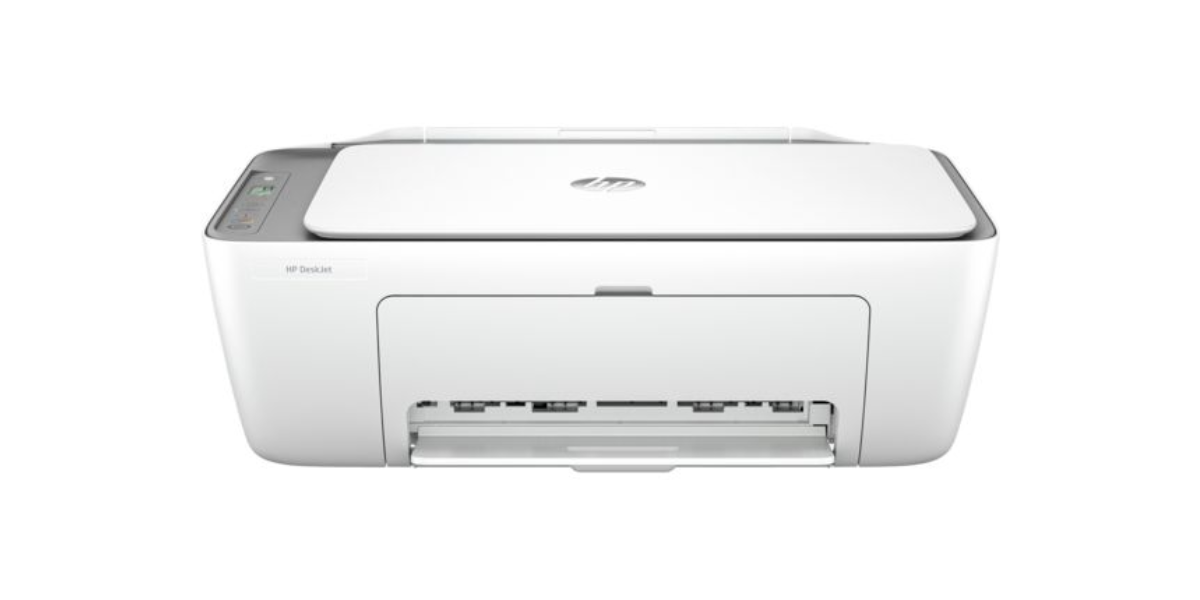
Check the label on top or back of your printer. You’ll see a model name like “HP DeskJet 2755e” or “HP LaserJet Pro MFP M227fdw”. Note this exactly before proceeding.
2 Visit HP’s Official Support Page
Go to support.hp.com/us-en/drivers. Type your printer model into the search bar and press Enter. Select your exact model from the results.
3 Select Your Operating System
HP’s site usually auto-detects your OS. If not, manually select Windows 11, Windows 10, or your version from the dropdown. Always choose the latest available driver package (Full Feature Software & Drivers is recommended).
4 Download and Run the Installer
Click “Download.” Once the file is saved (usually 150–400MB), double-click to run it. Accept the license agreement and follow the on-screen setup wizard. This takes 5–10 minutes.
5 Connect Your Printer When Prompted
The installer will ask you to connect your printer via USB or Wi-Fi. Follow the prompts carefully. For wireless setup, ensure your printer and PC are on the same network.
6 Test Print and Confirm
Once installed, print a test page: go to Settings → Devices → Printers & Scanners → select your HP printer → Manage → Print a test page.
HP Printer Driver Download for Mac (macOS Ventura, Sonoma & Older)
Mac users have a slightly different experience. Apple includes AirPrint support natively, but many HP features (scanning, ink monitoring, print quality settings) require the full HP driver package.
1 Try AirPrint First
On macOS Ventura/Sonoma, go to System Settings → Printers & Scanners → click “+” and add your HP printer. If detected via AirPrint, basic printing works immediately. For full features, continue below.
2 Download HP Easy Start
Visit support.hp.com, find your model, and download the HP Easy Start app for macOS. This app automatically finds and installs the right driver for your specific printer and macOS version.
3 Allow the Installation in Security Settings
macOS may block the installer. Go to System Settings → Privacy & Security → scroll down and click “Allow Anyway” next to the HP software warning. Then re-run the installer.
4 Add Printer and Test
After installation, go to Printers & Scanners, add your HP printer, and print a test page. You should now see full HP options including scan, fax (if supported), and ink levels.
HP Printer Driver Not Installing? Common Fixes
Even after downloading the correct driver, installation can fail. Here are the most common issues our HP printer support specialists resolve daily:
| Error / Symptom | Most Likely Cause | Quick Fix |
|---|---|---|
| Installer stops at 0% | Antivirus blocking download | Temporarily disable antivirus, re-download |
| Printer not detected | USB cable or port issue | Try different USB port; restart printer |
| “Driver unavailable” error | Wrong driver version | Verify model number matches download exactly |
| Driver installs but won’t print | Print spooler service stuck | Restart the Print Spooler in Windows Services |
| Mac Gatekeeper blocks install | macOS security settings | Allow in Privacy & Security settings |
| Wireless printer not connecting | Printer on different network | Ensure PC and printer on same Wi-Fi band (2.4GHz) |
If none of these quick fixes work, our remote support team can take over and resolve driver issues in under 30 minutes via a secure remote session. No technical knowledge required on your end.
✅ Pre-Installation Checklist — Do This Before Downloading
- Note your exact HP printer model number (check the label)
- Know your OS version: Windows 11/10/8 or macOS version
- Ensure your internet connection is stable (driver files are 150–400MB)
- Temporarily disable antivirus or Windows Defender real-time protection
- Close all other programs and browser tabs
- Have your Wi-Fi password ready if setting up wirelessly
- Charge or plug in your laptop — don’t let battery die mid-install
Which HP Driver Download Method Should You Use?
| Method | Best For | Safe? | Free? | Works on Mac? |
|---|---|---|---|---|
| HP Support Site (support.hp.com) | Most users | ✓ Yes | ✓ Yes | ✓ Yes |
| HP Smart App | Auto-update fans | ✓ Yes | ✓ Yes | ✓ Yes |
| Windows Update | Basic driver only | ✓ Yes | ✓ Yes | ✗ No |
| Third-party driver sites | — | ✗ RISK | Varies | Varies |
| PrintHelp.shop Remote Support | Non-technical users | ✓ Yes | From $19.99 | ✓ Yes |
For more detailed guidance on HP printer setup from scratch, read our HP Printer Complete Setup Guide. If your issue is specifically with wireless connection after the driver install, see our Wireless Printer Troubleshooting page.
Official HP Resources & External References
For the most up-to-date driver files, always start at HP’s official channels:
- 🔗 HP Official Driver Downloads — support.hp.com — Search any HP printer model and download certified drivers directly from the manufacturer.
- 🔗 Microsoft Windows 11 Compatibility — microsoft.com — Check whether your HP printer model is certified for Windows 11 before downloading.
Still Struggling with Your HP Printer Driver?
Skip the frustration. Our certified technicians resolve HP driver issues in under 30 minutes — remotely, securely, and guaranteed.
🖨️ Get Expert HP Driver Help Now
Frequently Asked Questions — HP Printer Driver Support
These are the questions our PrintHelp.shop support team answers most often. Answers are optimized to appear in Google’s AI Overview and Featured Snippets.
▾
▾
▾
▾
▾
▾
Final Thoughts — Getting Your HP Printer Driver Right the First Time
The vast majority of HP printer problems — from “printer offline” errors to blank pages, connection failures, and scan issues — trace back to a missing, outdated, or incorrectly installed driver. The good news: getting the right driver is free and takes under 10 minutes when you follow the steps in this guide.
Always download from support.hp.com, match the driver to your exact printer model and OS version, and use the HP Smart app for automatic future updates. If you hit a wall, our PrintHelp.shop support team is standing by 24/7 to resolve any HP printer driver issue remotely — guaranteed.
For related issues, explore our guides on HP printer not printing, HP printer showing offline, and HP ink cartridge problems.