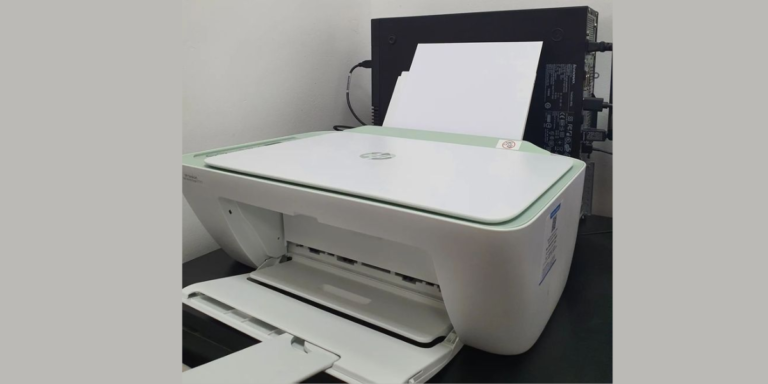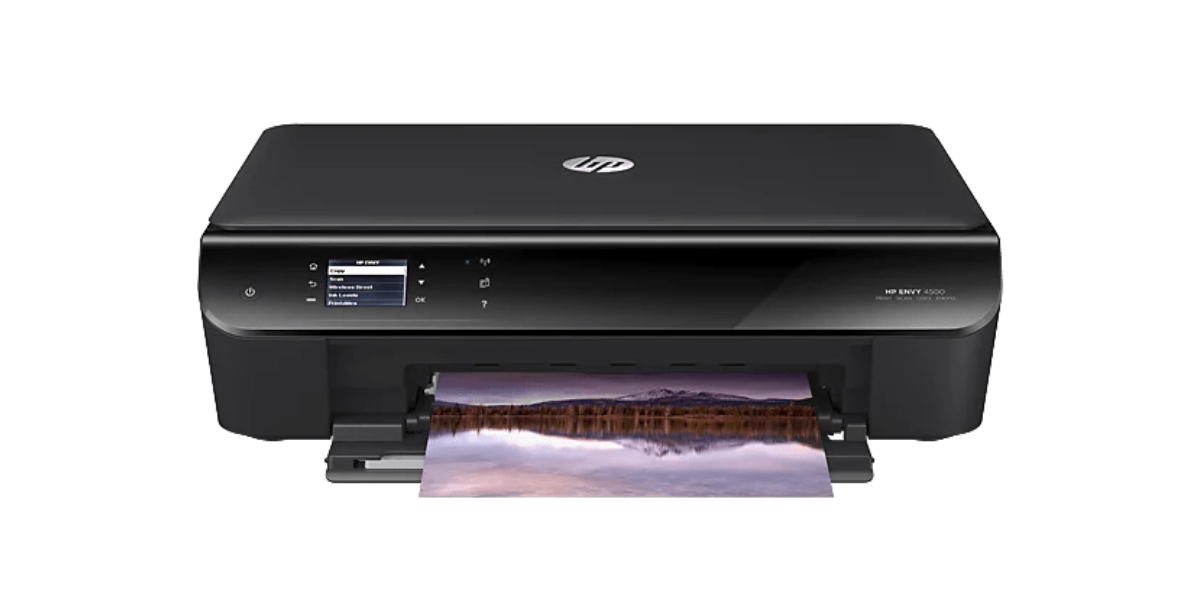
To set up an HP wireless printer, connect it to your WiFi network using the HP Smart app or the printer’s Wireless Setup Wizard, then install the drivers on your computer. The process takes under 10 minutes for most users.
- Power on your HP printer and press the Wireless button
- Download the HP Smart app (hp.com/smart) on your phone or PC
- Follow the in-app setup wizard to connect to your WiFi network
- Install drivers on your computer (Windows/Mac)
- Print a test page to confirm the setup is complete
Setting up an HP wireless printer doesn’t have to be complicated. Whether you just unboxed a brand-new HP DeskJet, ENVY, OfficeJet, or LaserJet printer — or you’re reconnecting an existing one after a network change — this guide walks you through every step of the HP wireless printer setup process clearly and completely.
This guide covers setup on Windows 10, Windows 11, macOS, Android, and iOS. We’ve also included the most common troubleshooting fixes and answers to the top questions people ask about HP wireless printer setup.
What You Need Before You Start
Before beginning your HP wireless printer setup, make sure you have the following ready:
- Your HP printer (powered on with ink/toner and paper loaded)
- Your WiFi network name (SSID) and password
- A smartphone, tablet, or computer connected to the same WiFi
- The HP Smart app downloaded (free — available at hp.com/smart)
- A stable WiFi connection (2.4GHz band recommended for most HP printers)
Step-by-Step HP Wireless Printer Setup (HP Smart App Method)
The HP Smart app is the easiest and most reliable method for HP wireless printer setup in 2025. Here’s exactly how to do it:
1 Unbox and Power On Your HP Printer
Remove all packing tape and protective materials. Install the ink cartridges or toner, load paper in the tray, and press the Power button. Wait for the printer to complete its startup sequence (the ready light should be solid).
On your device (phone, tablet, or PC), download the free HP Smart app. Available for Windows, macOS, iOS, and Android. Open the app and create a free HP account or sign in. This account lets you manage your printer from anywhere.
3 Add Your Printer in the HP Smart App
In the HP Smart app, tap or click the “+” (Add Printer) icon. The app will search for nearby HP printers. Select your printer model from the list. If it doesn’t appear, make sure Bluetooth is enabled on your device — HP Smart uses Bluetooth for initial discovery.
4 Connect to Your WiFi Network
The app will prompt you to select your WiFi network and enter the password. The HP Smart app securely sends these credentials to your printer. The printer’s wireless light will blink during connection and turn solid blue once connected successfully.
5 Install Printer Drivers on Your Computer
On Windows, go to Settings > Bluetooth & devices > Printers & scanners and click “Add a printer.” On Mac, go to System Settings > Printers & Scanners and click “+”. Your HP printer should appear automatically. Select it and the OS will install drivers. For full features, download the driver package from support.hp.com.
6 Print a Test Page
Once setup is complete, print a test page to confirm everything is working. On Windows: Control Panel > Devices and Printers > right-click your HP printer > Print Test Page. On Mac: System Settings > Printers & Scanners > select your printer > Print Test Page.
HP Wireless Setup Wizard (Alternative Method for Windows)
If you prefer not to use the HP Smart app, you can use the Wireless Setup Wizard built into many HP printers:
- On the printer’s control panel, tap the Wireless icon or go to Setup > Network Setup > Wireless Setup Wizard
- The printer will scan for available networks — select your WiFi name (SSID)
- Enter your WiFi password using the on-screen keypad
- Wait for the wireless light to turn solid blue (connection confirmed)
- On your Windows PC, go to Settings > Printers & Scanners and add the printer
For detailed driver download instructions, visit HP’s official driver download portal at support.hp.com/drivers — always use official HP sources for drivers to avoid security risks.
HP Wireless Printer Setup by Operating System
Windows 10 / Windows 11
Windows 10 and 11 both include built-in HP printer support. After connecting your printer to WiFi, go to Settings > Bluetooth & devices > Printers & scanners > Add a printer or scanner. Windows will detect your HP printer on the network. For the full driver package with all features (scanning, faxing, HP utilities), download from our driver installation service page or HP’s official site.
macOS (Sonoma, Ventura, Monterey)
macOS includes HP drivers via Apple Software Update. Connect your printer to WiFi first, then go to System Settings > Printers & Scanners > “+” > Add Printer. macOS auto-detects HP printers on the same network and installs drivers silently. The HP Smart app for Mac is available free from the Mac App Store and gives you advanced controls.
iPhone / iPad (iOS)
HP printers support Apple AirPrint natively. No app needed — just make sure your iPhone/iPad and HP printer are on the same WiFi. Tap the Share icon in any app > Print > Select Printer > choose your HP printer. Done.
Android
Use the HP Smart app for Android (free from Google Play). After WiFi setup, you can print from Android apps using the HP Print Service Plugin, which is available from the Google Play Store.
HP Wireless Setup Methods: Quick Comparison
| Method | Best For | Difficulty | Time |
|---|---|---|---|
| HP Smart App | All users, all devices | ⭐ Easy | ~5 min |
| Wireless Setup Wizard | Touchscreen HP printers | ⭐ Easy | ~8 min |
| WPS Button | WPS-enabled routers | ⭐ Very Easy | ~2 min |
| USB then WiFi | Manual/advanced users | ⭐⭐ Moderate | ~12 min |
| Professional Setup | Business / multi-device | Done for you ✅ | ~30 min |
HP Wireless Printer Not Connecting? Common Fixes
If your HP wireless printer setup isn’t working, try these proven fixes before calling support:
- Restart everything: Power off the printer, router, and computer. Wait 60 seconds, then power back on in this order: router → printer → computer.
- Check WiFi band: Connect your printer to the 2.4GHz band specifically, not 5GHz.
- Reduce distance: Move the printer closer to your router during setup.
- Disable firewall temporarily: Your PC firewall may block the printer discovery process.
- Restore network settings: On the printer, go to Setup > Network Setup > Restore Network Settings, then redo the wireless setup.
- Update firmware: In the HP Smart app, check for printer firmware updates under the printer settings menu.
If none of these work, visit our wireless printer not connecting troubleshooting page or get instant help from our technicians below.
🖨️ Still Struggling with HP Printer Setup?
Our certified HP support technicians will set up your printer remotely — fast, secure, and guaranteed. Average setup time: under 30 minutes.
👉 Get Expert HP Setup Help Now
✅ 100% Money-Back Guarantee | No Fix = No Charge | Available 7 Days a Week
Frequently Asked Questions — HP Wireless Printer Setup
1 How do I connect my HP printer to WiFi?
2 Why is my HP wireless printer not connecting to WiFi?
3 How do I install HP printer drivers on Windows 10/11?
4 Can I set up an HP printer without a CD or disc?
5 How do I add an HP printer to my Mac?
6 How much does professional HP printer setup cost?
Official HP Resources & Further Reading
For product-specific manuals, driver downloads, and warranty information, always use HP’s official resources:
- HP Official: Set Up a Printer on a Wireless Network (hp.com) — HP’s own step-by-step guide for wireless printer setup across all models.
- HP Driver Downloads (support.hp.com) — Official, safe source for all HP printer drivers and software.
🏆 50,000+ Printers Setup | ⭐ 4.9/5 Average Rating | 🔒 Secure Remote Sessions | 💯 Money-Back Guarantee | 📞 7-Day Support