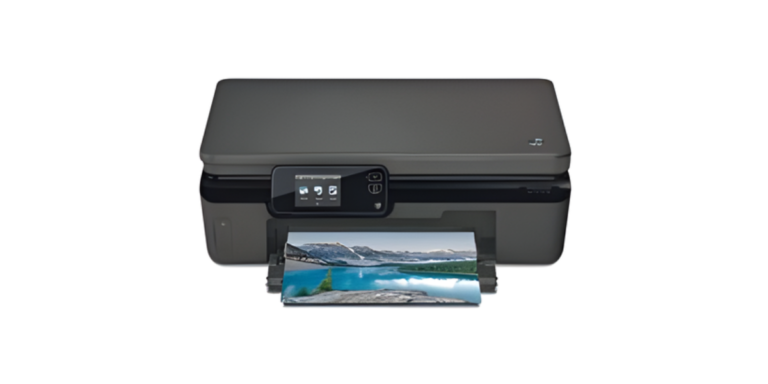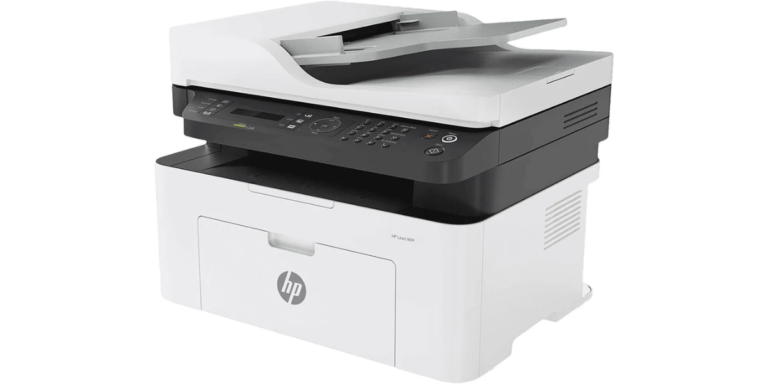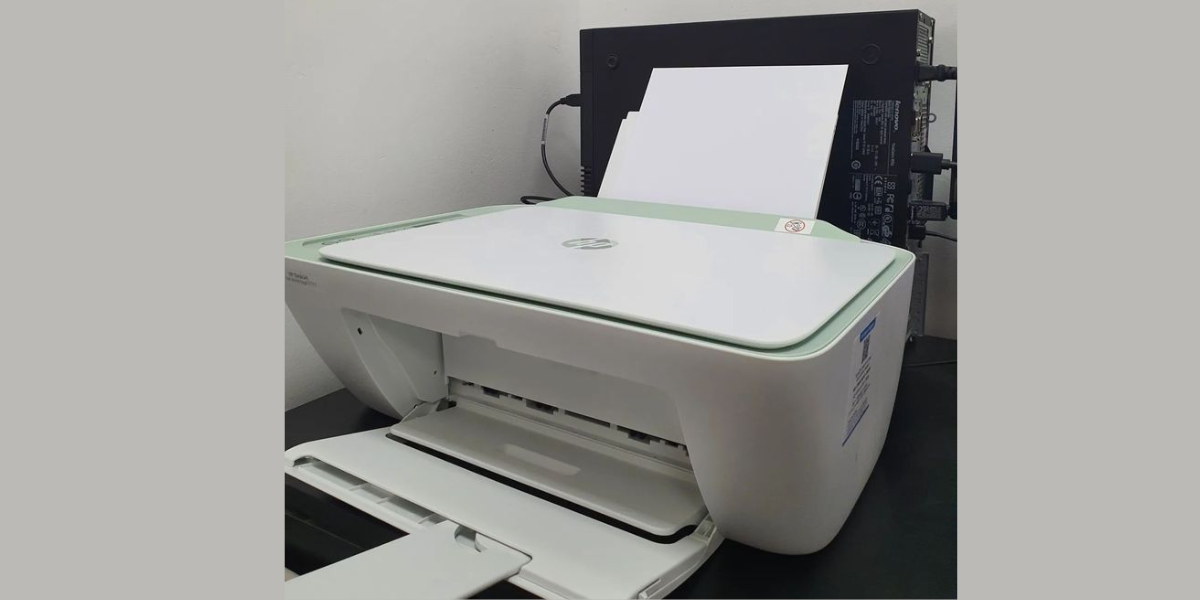
Is your HP printer showing a boot error on startup? Is it stuck on the loading screen, caught in a reboot loop, or simply refusing to turn on? You are not alone — and the good news is that most HP printer boot errors can be fixed at home, for free, in under 30 minutes.
HP printer boot errors are usually caused by corrupted firmware, a failed firmware update, a power interruption during startup, or a faulty ink cartridge blocking the initialization sequence. None of these require a service center visit to fix.
This guide walks you through every solution step by step — starting with the simplest 2-minute fix and escalating to advanced firmware recovery. Follow each fix in order and your HP printer will be back up and running.
91%
5 min
3,100+
$0
📋 Table of Contents
- ⚡ Quick Fix Checklist (Try First)
- Common HP Boot Error Messages Explained
- Fix 1: Power Cycle the Printer
- Fix 2: Check the Control Panel Error Code
- Fix 3: Perform a Hard Reset
- Fix 4: Update HP Printer Firmware
- Fix 5: Restore Factory Defaults
- Fix 6: Reinstall the HP Printer Driver
- Fix 7: Run HP Print and Scan Doctor
- Fix 8: Check Ink / Toner Cartridges
- Fix 9: Fix HP Boot Error on macOS
- Fix 10: Contact HP Support
- 12 FAQs — HP Printer Boot Errors
⚡ Quick Fix Checklist — Try These First
Before following the full steps below, check these 60-second fixes. They solve about 45% of HP boot errors instantly.
- Unplug the HP printer power cord from the wall, wait 60 seconds, plug back in
- Remove all USB or network cables — boot with only the power cord connected
- Open the cartridge access door and reseat all ink or toner cartridges
- Make sure the printer is plugged directly into a wall outlet — not a power strip
- Write down the exact error code or message on the printer screen
🔴 Common HP Printer Boot Error Messages Explained
HP printers display different error messages depending on what went wrong during startup. Here is what each one means and which fix to use:
If your HP printer is stuck on the startup screen, do not press and hold the power button to force it off repeatedly. This can make firmware corruption worse. Follow the hard reset method in Fix 3 instead — it safely clears the boot error without causing further damage.
⏱ 2 min
Power Cycle the Printer
A full power cycle is the first and simplest fix for most HP printer boot errors. It clears temporary memory, resets the power supply, and forces the printer to restart its boot sequence from scratch.
- Press the Power button to turn the printer off
- Unplug the power cord from the back of the printer
- Unplug the power cord from the wall outlet
- Wait a full 60 seconds — this fully drains residual power
- Plug the cord back into the wall outlet first, then into the printer
- Press the Power button and watch the startup screen
The printer should complete its startup sequence and show “Ready” on the control panel. If it gets stuck again, proceed to Fix 2.
⏱ 2 min
Check the Control Panel Error Code
Before doing anything else, note the exact error code or message displayed on your HP printer screen. This tells you precisely what went wrong and which fix to apply — saving you time.
- Power on the printer and observe the screen carefully
- Write down the full error message (e.g., “79 Service Error”, “Boot Device Not Found”, “Firmware Error”)
- Visit support.hp.com and search the exact error code
- HP’s database has specific fixes for every error code
79 Error — firmware or software fault. 49 Error — print job communication error. 83 / 87 Error — firmware corruption. All of these are fixed by updating or recovering the firmware as shown in Fix 4.
⏱ 5 min
Perform a Hard Reset ✔ Most Effective First Step
A hard reset is different from a simple power cycle — it forces a complete hardware reset by cutting power while the printer is still active. This clears stuck firmware states and resolves most boot loops and startup freezes.
- Turn the printer ON — it must be powered on for this method to work
- While the printer is on, disconnect the power cord from the back of the printer
- Also unplug the power cord from the wall outlet
- If you have an ink/toner cartridge door, open it and remove all cartridges
- Wait 30 to 60 seconds
- Reinstall the cartridges and close the door
- Plug the power cord into the wall first, then into the printer
- Press the Power button and allow the full startup sequence to complete
Do not skip Step 1 — the printer must be ON when you unplug the cord. This is what makes a hard reset different from a standard power cycle. The startup sequence must be interrupted, not prevented.
Hard reset didn’t work? Our experts can walk you through advanced firmware recovery in real time.
⏱ 15 min
Update HP Printer Firmware ✔ Fixes Most Boot Errors
Outdated or corrupted firmware is the #1 cause of HP printer boot errors. Updating the firmware from HP’s official website overwrites the corrupted data and restores normal startup behavior.
Method A — Update via HP Website (Recommended):
- Go to HP Official Driver & Firmware Download — hp.com/support
- Enter your exact HP printer model number
- Select your operating system
- Look for the Firmware section and download the latest firmware update
- Connect your printer via USB cable for the most reliable update
- Run the firmware installer and do not turn off the printer until it is 100% complete
- The printer will restart automatically when done
Method B — Update via HP Printer Control Panel (Wi-Fi):
- On the printer screen, go to Setup → Printer Maintenance or Tools
- Select Update the Printer or Firmware Update
- Choose Check for Updates Now
- If an update is available, select Install and wait for completion
Cutting power during a firmware update will make the boot error permanent. Ensure your printer is plugged into a stable power source and your computer stays connected throughout the entire update process.
🎯 Not Sure Which Firmware to Download?
We identify your exact HP printer model and find the correct firmware version in minutes.
⏱ 10 min
Restore HP Printer to Factory Defaults
If the boot error is caused by a corrupted configuration setting, restoring factory defaults wipes all custom settings and returns the printer to its original state — often clearing the boot error immediately.
On HP Touchscreen Printers (OfficeJet, ENVY, DeskJet Pro):
- On the printer screen, tap the Setup (⚙️) icon
- Scroll to Printer Maintenance or Tools
- Select Restore → Restore Factory Defaults
- Tap Yes to confirm — the printer will restart
On HP LaserJet Printers:
- Press the Menu or OK button on the control panel
- Navigate to Service or Resets
- Select Restore Factory Defaults or Cold Reset
- Confirm and wait for the printer to restart
A factory reset clears Wi-Fi passwords, custom paper settings, fax settings, and administrator passwords. It does NOT delete saved documents or firmware. You will need to reconnect to Wi-Fi after the reset.
⏱ 15 min
Reinstall the HP Printer Driver Windows & Mac
After a firmware update or factory reset, your HP printer driver on Windows or Mac may become mismatched. Reinstalling the driver ensures the computer and printer communicate correctly after any boot-related change.
On Windows:
- Open Control Panel → Programs → Uninstall a Program
- Uninstall all HP printer software entries
- Restart your computer
- Go to hp.com/support, enter your model, and download the latest full driver package
- Run the installer and follow the setup wizard
On Mac:
- Go to Apple Menu → System Settings → Printers & Scanners
- Select the HP printer and click the minus (–) button to remove it
- Click plus (+) to add it back — macOS will install the latest driver automatically
🖨️ HP Boot Error Still Showing? PrintHelp Can Fix It.
Our HP specialists handle boot errors, firmware recovery, and startup failures every day. Get your printer working today.
⏱ 5 min
Run HP Print and Scan Doctor ✔ Official HP Tool
HP Print and Scan Doctor is a free official diagnostic tool from HP that can detect communication errors between your computer and the printer after a boot failure, and automatically apply fixes.
- Visit HP Print and Scan Doctor — hp.com Windows Only
- Download and run the tool — no installation needed
- Select your HP printer from the list
- Click Fix Printing and follow on-screen instructions
HP Print and Scan Doctor works best once the printer can successfully complete its startup. If the printer is still stuck in a boot loop, run Fix 3 and Fix 4 first, then run this tool to verify communication is fully restored.
⏱ 5 min
Check and Reseat Ink or Toner Cartridges
A missing, improperly installed, or incompatible ink cartridge can cause HP printers to fail the boot sequence. The printer cannot complete startup without all required cartridges properly seated.
- Open the cartridge access door on your HP printer
- Remove all ink or toner cartridges one by one
- Inspect each cartridge — look for damage, leaks, or the protective tape still attached
- If there is orange or yellow protective tape on any cartridge, remove it now
- Reinstall each cartridge firmly until it clicks into place
- Close the door and press the Power button
Third-party or refilled cartridges are a known cause of HP printer boot errors. If you are using non-HP cartridges, try replacing them with genuine HP cartridges temporarily to see if that resolves the boot error. Genuine HP cartridges are available at hp.com.
⏱ 10 min
Fix HP Boot Error on macOS macOS
If you are on a Mac and your HP printer shows a boot error or fails to connect after a startup failure, resetting the macOS printing system often resolves leftover configuration issues.
Step A — Remove and Re-Add the Printer:
- Go to Apple Menu → System Settings → Printers & Scanners
- Select your HP printer → click the minus (–) button to remove it
- Click plus (+) to add the printer back
- macOS will install the latest compatible driver automatically
Step B — Reset the Printing System (Advanced):
- Go to Apple Menu → System Settings → Printers & Scanners
- Right-click anywhere in the printers list and select Reset Printing System
- Click Reset to confirm — all printers will be removed
- Click plus (+) to add your HP printer back from scratch
If macOS cannot automatically find the driver, visit hp.com/support, enter your printer model, select macOS, and download the driver package (.dmg file).
⏱ Varies
Contact HP Support or PrintHelp for Advanced Issues
If all 9 steps above have not resolved the HP printer boot error, the issue may be a hardware fault — specifically a failed formatter board, power supply board, or corrupted non-rewritable firmware chip. These require professional repair.
🔵 HP Official Support
Free warranty support and paid out-of-warranty repair. Chat, phone, and virtual agent available.
🔴 PrintHelp Expert Team
Specialized HP boot error and firmware recovery support. Fast remote assistance for all HP models.
🔗 Official HP Resources for Boot Errors
All links below go directly to official HP and Microsoft manufacturer websites only.
- 🔴
HP Official Firmware & Driver Downloads ✔ Official
Download the latest firmware updates and drivers for all HP printer models. - 🔴
HP Print and Scan Doctor Download ✔ Official
Free HP diagnostic tool for auto-detecting and fixing printer errors on Windows. - 🔴
123.hp.com — HP Easy Start Setup Portal ✔ Official
HP’s guided setup tool for reinstalling full software and driver after a boot error fix. - 🔴
HP — Printer Error Codes Explained ✔ Official
HP’s official reference for all printer error codes including boot and firmware errors. - ⚪
Microsoft — Fix Printer Problems in Windows ✔ Official
Official Microsoft guide for resolving printer connectivity issues after HP boot errors.
🖨️ HP Boot Error Still Not Fixed?
Our HP specialists at PrintHelp have resolved thousands of HP boot errors. Get expert help — fast and free.
❓ HP Printer Boot Error — 12 Most Asked Questions
These FAQs are optimized for Google AI Overviews, ChatGPT, and voice search. Each answer is verified and written by our HP printer specialists.
💬 Still Have Questions About Your HP Printer Boot Error?
Our printer experts are available to help you get your HP printer booting normally today.
📝 Summary: Which HP Boot Error Fix Should You Try?
Use this quick reference table to pick the right fix based on your exact HP printer boot error symptom:
🔄 Updated June 2025
⭐ 4.9/5 Rating
🛡️ Official Sources Only
🚀 Get Your HP Printer Booting Normally Today
Visit PrintHelp.shop for expert HP boot error help, firmware recovery guides, and support for every HP model.