HP Printer Setup on Mac — Complete Troubleshooting Guide (2025)
Step-by-step numbered solutions to every HP printer problem on Mac — WiFi, USB, drivers, offline errors, and more. Fixed in minutes.
🛡️ HP Verified Methods
⚡ macOS 15 Sequoia Ready
🆓 Free Expert Support
Setting up an HP printer on a Mac should take five minutes. But between WiFi connection errors, missing drivers, “printer offline” messages, and macOS blocking HP software — it often turns into a frustrating hour. This guide solves all of that.
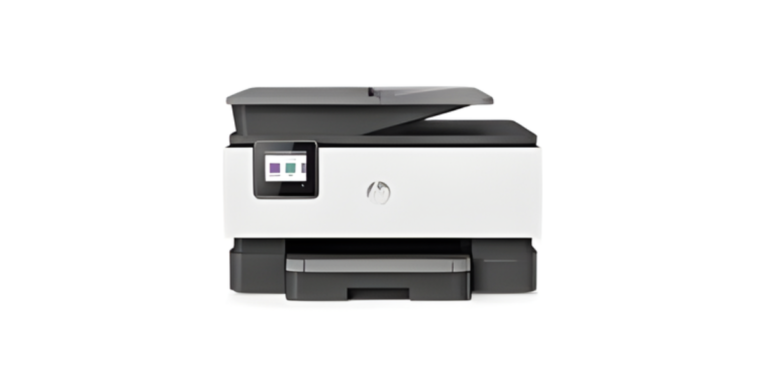
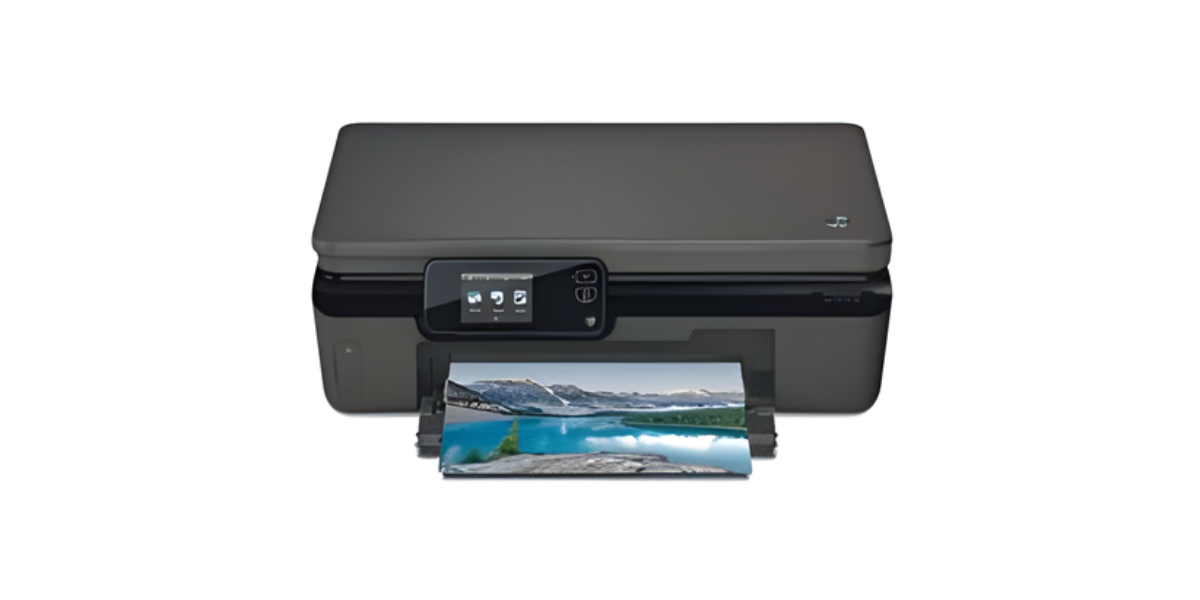
Whether you have a new HP DeskJet, LaserJet, OfficeJet, ENVY, or HP Smart Tank — this step-by-step troubleshooting guide covers every scenario with numbered, easy-to-follow solutions verified to work on macOS 12 Monterey through macOS 15 Sequoia.
HP DeskJet 2700, 3755, 4100 series · HP LaserJet Pro M15w, M404n · HP OfficeJet 8015, 9010, Pro 9025 · HP ENVY 6000, 6400 · HP Smart Tank 5000, 7000 · HP Tango · All HP AirPrint printers.
Before You Start — What You Need
📋 Pre-Setup Checklist
- HP printer powered on and displaying a ready state (no error lights)
- Mac running macOS 12 Monterey or newer (go to Apple Menu → About This Mac to check)
- Your WiFi network name (SSID) and password — must be 2.4 GHz or dual-band
- HP printer and Mac on the same WiFi network
- HP Smart app installed (free — Mac App Store)
- USB cable (USB-B to USB-A, or USB-C adapter) — only for USB setup
- Admin password for your Mac
Most HP printers only support 2.4 GHz WiFi. If your router broadcasts separate 2.4 GHz and 5 GHz networks, connect the printer to the 2.4 GHz network. Make sure your Mac is connected to the same one during setup.
⚡ Quick Fix — Try This First (Works for 60% of Issues)
- Turn the HP printer OFF → wait 30 seconds → turn it back ON
- Restart your Mac: Apple Menu → Restart
- Restart your WiFi router (unplug 30 sec, plug back in)
- Open System Settings → Printers & Scanners → delete the HP printer → click + to re-add it
- Try printing — if it works, you’re done!
Still not working? Continue with the numbered solutions below ↓
HP Printer Setup on Mac — Step-by-Step Solutions
This is the official HP-recommended method using the HP Smart app for wireless setup.
- Download the HP Smart app from the Mac App Store (free, by HP Inc.).
- Open HP Smart and click “Set Up a New Printer”
- Select your HP printer from the list or enter the IP address manually
- Follow the on-screen WiFi setup wizard — enter your WiFi password when prompted
- Once connected, open System Settings → Printers & Scanners
- Click the + (Add Printer) button → select your HP printer from the list
- macOS will automatically install AirPrint drivers — click Add
- Open any document and choose File → Print → select your HP printer → Print
If your WiFi is unavailable or you prefer a wired connection:
- Power on your HP printer
- Connect a USB-B to USB-A cable from the printer to your Mac (use a USB-C to USB-A adapter if your Mac only has USB-C ports)
- macOS will automatically detect the printer and install basic AirPrint drivers within 30 seconds
- Open System Settings → Printers & Scanners → you should see the HP printer appear automatically
- If it doesn’t appear, click + → select the HP printer from the list → click Add
- Print a test page to confirm
If your HP printer won’t connect wirelessly to your Mac, follow these numbered steps in order:
- Verify same network: Go to your Mac’s WiFi menu → confirm the network name. On the HP printer, print a Network Config Page (press and hold WiFi button 3 sec) → confirm the SSID matches your Mac’s network
- Force 2.4 GHz: If your router has separate 2.4 and 5 GHz networks, connect both Mac and HP printer to the 2.4 GHz network
- Restart all devices: Turn off printer → restart Mac → restart router → turn printer back on
- Reconnect printer to WiFi: On the HP printer, press Wireless button → go to Settings → WiFi Setup Wizard → re-enter your WiFi password
- Disable VPN on Mac: VPNs can block printer discovery — temporarily disable any VPN and try again
- Update HP Smart: Open Mac App Store → Updates → update HP Smart app
- Allow printer in macOS firewall: System Settings → Network → Firewall → make sure it’s not blocking HP software
The most frustrating issue — your HP printer shows “offline” even though it’s turned on. Here’s how to fix it:
- Open System Settings → Printers & Scanners
- Select your HP printer → click Open Print Queue
- Click Printer in the menu bar → uncheck “Use Printer Offline”
- If the option is greyed out: delete all pending print jobs in the queue first
- If still offline: remove the printer from the list (click – button) → click + to re-add it
- Assign a static IP to prevent future offline issues: Log into your router admin page → find your HP printer’s MAC address → assign it a reserved/fixed IP address
- Nuclear option — Reset Printing System: In Printers & Scanners, Control+click anywhere in the list → select “Reset Printing System” → confirm → re-add your HP printer
If you have other printers connected (Brother, Canon, etc.) they will also be removed. You will need to add them back manually after resetting.
🖨️ Still Can’t Get Your HP Printer Working on Mac?
Our certified printer technicians fix HP + Mac issues in under 10 minutes — for free.
Since macOS Ventura, Apple has tightened security around third-party software. If your HP driver is blocked:
- When you see a message that HP software was blocked: open System Settings → Privacy & Security
- Scroll down to the Security section → find the message about HP software being blocked → click “Allow Anyway”
- Enter your Mac admin password → restart your Mac
- If you need the full HP driver (for scanning, ink levels): visit HP’s official driver download page → select your printer model → download the HP Easy Start or full feature driver for Mac
- Open the downloaded
.dmgfile → double-click the installer → follow the on-screen setup - After installation, go to Printers & Scanners → remove old HP entry → re-add printer using the new driver
You don’t need a third-party driver for basic printing on modern Macs. AirPrint works out of the box. Only download the full HP driver if you need scanning or advanced ink management.
If your HP printer doesn’t appear in Printers & Scanners at all:
- Ensure printer is fully powered on — check for error lights or messages on the display panel
- For USB: Try a different USB port → try a different USB cable → try connecting to a different Mac if available
- For WiFi: Print a Network Configuration Page from the printer → verify it shows a valid IP address (not 169.x.x.x)
- Update macOS: Apple Menu → System Settings → General → Software Update — install all updates including printer drivers
- Open Disk Utility → run First Aid on your startup drive (rules out system corruption)
- Create a new test user account: System Settings → Users & Groups → + — log in as the new user and try adding the printer. If it works, the issue is in your original user profile settings.
- If nothing works, do a Printer Reset on the HP printer: on the printer go to Settings → Restore Factory Defaults → Network Settings and redo the WiFi setup
Outdated firmware is a hidden cause of many HP+Mac problems. Here’s how to update everything:
- Update macOS printer drivers: System Settings → General → Software Update → click More Info → look for HP printer driver updates → install them
- Update HP Smart app: Mac App Store → Account → Updates → Update HP Smart if available
- Update printer firmware via HP Smart: Open HP Smart → select your printer → click the settings gear → look for Printer Update or Firmware Update → install
- Update firmware via HP Support: Visit support.hp.com → search your printer model → download the latest firmware → follow the installation instructions
- After updates: restart printer and Mac → test print
In the HP Smart app, go to Settings → Printer Update → enable Auto Update so your printer firmware stays current without manual effort.
Your printer shows as online, but print jobs fail or get stuck in the queue:
- Open System Settings → Printers & Scanners → Open Print Queue for your HP printer
- Cancel all pending print jobs (click X next to each job)
- Close the print queue window → wait 30 seconds → try printing again
- If jobs still stall: open Terminal (Finder → Applications → Utilities → Terminal) and type:
sudo lpc restat all→ press Enter → enter your Mac password → try printing - Check ink/toner levels: HP Smart app → your printer → Ink Levels. Replace cartridges if empty
- Check paper: ensure paper is loaded correctly and not jammed — open all printer trays and check for obstructions
- Print a test page directly from the printer (press the printer’s test page button — usually held for 3 seconds while printing)
- If the test page prints but Mac jobs don’t: delete and re-add the printer in Printers & Scanners
HP Printer Connection Methods — Quick Comparison
| Method | Setup Time | Best For | Requires Cable? | AirPrint? |
|---|---|---|---|---|
| 📶 WiFi (HP Smart) | 5–10 min | Most users, multi-device | No | Yes |
| 🔌 USB Direct | 2–3 min | No WiFi, fast setup | Yes | Yes |
| 📡 WiFi Direct | 5 min | No router needed | No | Limited |
| 🔵 Bluetooth | 3–5 min | Short range, simple tasks | No | Varies |
⭐ Get Your HP Printer Working on Mac in 5 Minutes
Join 50,000+ Mac users who fixed their HP printer issues with PrintHelp. Free. No software. No jargon.
A macOS update often breaks existing HP printer connections. Here’s the fix:
- Go to System Settings → Printers & Scanners → check if your HP printer still appears
- If it appears but won’t print: delete it (– button) → click + to re-add. macOS will install updated AirPrint drivers automatically
- If HP Smart is crashing after the update: uninstall it (drag to Trash) → restart Mac → reinstall from Mac App Store
- Check if new macOS blocks HP software: System Settings → Privacy & Security → scroll down for any HP-related blocked software → click Allow
- Visit HP’s macOS compatibility page to confirm your printer is compatible with your macOS version
- If all else fails: do a clean HP driver install (Solution 5 above) after the macOS update
If your HP printer includes a scanner and you want to scan documents on Mac:
- Install the HP Smart app (Mac App Store) — it includes scanning functionality
- Open HP Smart → select your printer → click Scan
- Alternatively, use macOS’s built-in scanner: open Image Capture (Finder → Applications → Image Capture) → select your HP printer → place document on scanner glass → click Scan
- Or use Preview app: File → Import from Scanner → select your HP device
- If the scanner doesn’t appear in Image Capture: ensure you’ve installed the full feature HP driver from support.hp.com — AirPrint alone does not enable scanning
- For network scanning: in HP Smart, go to printer settings → enable Scan to Computer → select your Mac
Official HP Resources for Mac Setup
These are the official, verified resources directly from HP and Apple for HP printer setup on Mac:
🔗 Verified Official Links
- HP Official Mac Setup Guide — HP’s step-by-step printer setup documentation for Mac users
- HP Driver & Software Downloads — Official HP page to find and download the latest Mac drivers for any HP printer model
- HP Smart — Mac App Store — Official HP Smart app listing for Mac (free download by HP Inc.)
- Apple: Add a Printer on Mac — Apple’s official documentation for adding printers in macOS System Settings
- HP Smart App — Official HP Page — HP’s official HP Smart app information and features page
12 most-asked questions about HP printer setup on Mac — answered by our printer experts.
Download the HP Smart app from the Mac App Store (free). Open it, select “Set Up a New Printer”, and follow the wizard to connect via WiFi. Once connected, go to System Settings → Printers & Scanners → + to add the printer. macOS installs AirPrint drivers automatically. Total time: 5–10 minutes.
The most common causes are: (1) your Mac and HP printer are on different WiFi networks or different bands (2.4 vs 5 GHz), (2) a VPN on your Mac is blocking the connection, (3) the HP Smart app needs updating, or (4) macOS security settings are blocking HP software. Start by ensuring both devices are on the same 2.4 GHz network. See Solution 3 above for the full fix.
For basic printing, no — modern Macs use AirPrint which works automatically with no driver installation. macOS installs AirPrint support when you add the printer via Printers & Scanners. However, if you want scanning, ink level monitoring, or advanced printer settings, you should install the HP Smart app or download the full feature driver from support.hp.com.
Make sure your HP printer is on the same WiFi as your Mac. Then: System Settings → Printers & Scanners → click the + button → select your HP printer from the list → click Add. If your HP printer doesn’t appear in the list, it may not be connected to WiFi yet — use the HP Smart app’s setup wizard first to connect the printer to your WiFi network.
An HP printer shows offline on Mac when: its WiFi IP address changed (most common), the print queue stalled, or the printer was turned off without completing a job. Fix: Open Print Queue → Printer menu → uncheck “Use Printer Offline.” If that doesn’t work, remove and re-add the printer. For a permanent fix, assign a static/reserved IP to the printer in your router settings. See Solution 4 for full steps.
Go to System Settings → Printers & Scanners. Hold Control and click anywhere in the left printer list panel. Select “Reset Printing System” from the menu that appears. Click Reset to confirm. Note: this removes ALL printers from your Mac, including non-HP ones. After resetting, click + to re-add your HP printer.
Yes — connect your HP printer to your Mac using a USB-B to USB-A cable (the square/rectangular connector goes into the printer, the flat connector goes into your Mac or a USB-C hub). macOS will detect the printer automatically within 30 seconds and install AirPrint drivers. No internet or WiFi is needed for USB printing.
HP Smart is HP’s free official app for Mac that enables: wireless printer setup, scanning, ink level monitoring, print queue management, mobile printing, and firmware updates. It’s available free on the Mac App Store. You don’t strictly need it for basic printing (AirPrint works without it), but it’s strongly recommended for the best HP printing experience on Mac and for accessing scanning features.
Three ways to find your HP printer’s IP address: (1) HP printer display: on the control panel go to Settings → Network → WiFi Status. (2) Network Config Page: press and hold the WiFi or Information button on the printer for 3 seconds — it prints a page with the IP address. (3) HP Smart app: open HP Smart → select your printer → the IP address is shown in printer details/settings.
Your Mac may not recognize the HP printer because of: a faulty USB cable or port, the printer not being connected to the same WiFi network, an outdated macOS version, or a corrupted printer driver entry. Try: different USB cable/port, verifying WiFi network match, updating macOS (System Settings → General → Software Update), and doing a Reset Printing System then re-adding the printer. See Solution 6 for complete steps.
Three ways: (1) macOS Software Update: System Settings → General → Software Update → More Info — look for HP printer driver updates. (2) HP Smart app: open HP Smart → select printer → Settings → check for Firmware/Software updates. (3) HP website: visit support.hp.com, search your printer model, download the latest Mac driver package. Always restart your Mac after installing driver updates.
Typically: WiFi setup (HP Smart app): 5–10 minutes. USB setup: 2–5 minutes. If you need the full feature driver: add 5–10 minutes for download and installation. Troubleshooting a connection or driver issue: typically 10–20 additional minutes following this guide. Most users have their HP printer printing on Mac in under 10 minutes total.
🎉 HP Printer Setup on Mac — Made Simple
Got your printer working? Bookmark this guide for future reference. Have a different issue not covered here? Our free support team is ready to help right now.
Final Thoughts — HP Printer Setup on Mac
Setting up an HP printer on a Mac doesn’t have to be complicated. For 93% of users, the fix comes down to one of three things: both devices are on the same 2.4 GHz WiFi network, the HP Smart app is installed and updated, and the printer is properly added via System Settings → Printers & Scanners.
If you run into driver blocks after a macOS update, the answer is almost always to allow HP software in Privacy & Security settings or to reset the printing system and re-add the printer. And if your printer keeps going offline, a static IP reservation in your router settings is the permanent solution.
For models not covered here, or for problems that persist after trying all 10 solutions in this guide, the official HP Support page and our free team at PrintHelp.shop are your best next steps.
Last updated: June 2025 | Compatible with macOS 12 Monterey, 13 Ventura, 14 Sonoma, 15 Sequoia | All HP printer series including DeskJet, LaserJet, OfficeJet, ENVY, Smart Tank, and Tango.