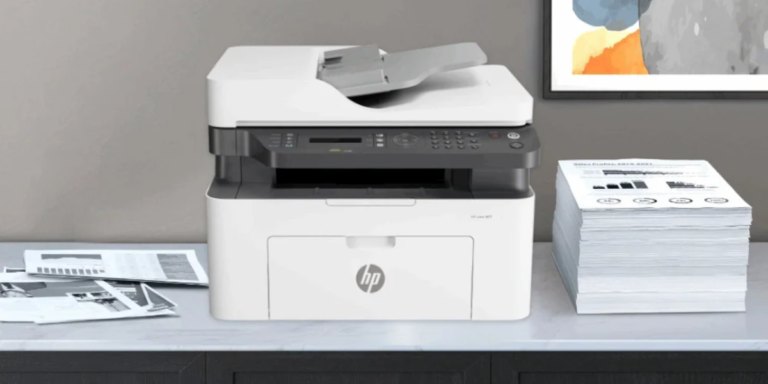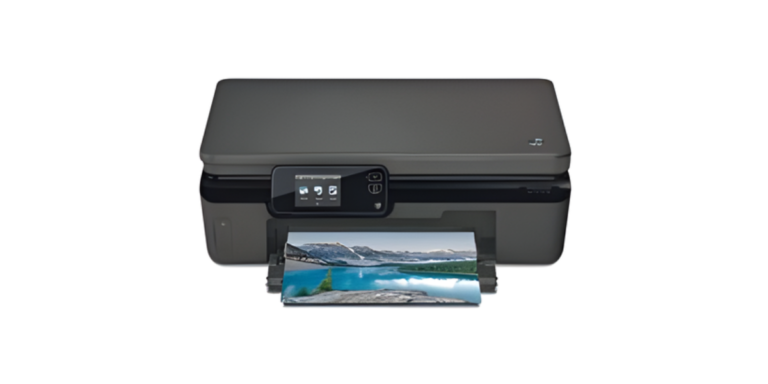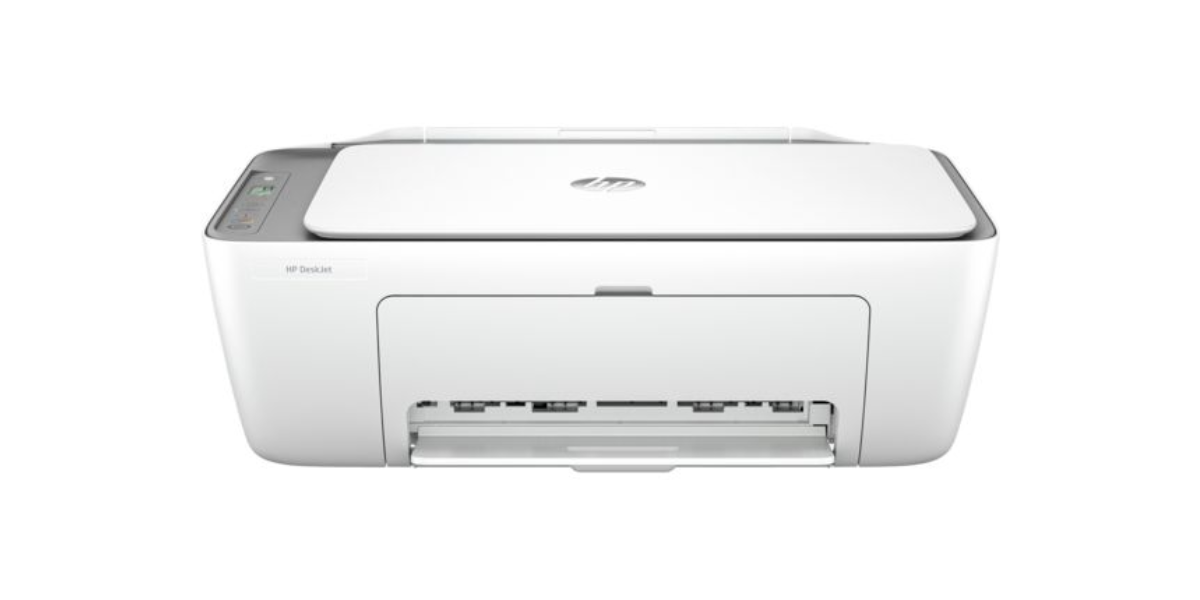
🖨️ All HP Models
⚡ Works Windows 10/11 & Mac
🔒 Expert Verified
HP Printer USB Setup Guide: Complete Step-by-Step Troubleshooting
Fix USB not detected, driver errors, offline status, and connection drops — in plain English, with numbered solutions that actually work.
📋 Table of Contents
Setting up your HP printer via USB should take less than five minutes. But if Windows isn’t detecting your printer, drivers are failing, or your printer keeps going offline — you’re not alone. These are the most common HP USB printer issues reported in 2026, and this guide fixes all of them.
Whether you’re doing a fresh install on a new PC, troubleshooting an existing connection, or switching from WiFi to USB, this guide covers every scenario — step by step, with no tech jargon.
ℹ️
🧰 What You Need Before You Start
Before connecting your HP printer, make sure you have these items ready:
USB Cable (Type-A to Type-B)
Most HP printers use a square “Type-B” connector. Some newer models use USB-C. Check your printer’s back panel before buying.
Your HP Printer Model Number
Find it on the front or bottom label. Example: HP DeskJet 4155, HP LaserJet M110w. You’ll need it to download drivers.
Internet Connection
Required to download the official HP driver package from HP’s website. The driver file is usually 100–300 MB.
Admin Access on Your PC
You need administrator rights to install drivers. Make sure you’re logged in as an admin, not a guest account.
⚠️
⚡ Quick Fix Checklist — Try These First
Before diving into full troubleshooting, run through this 60-second checklist. It resolves most HP USB problems immediately:
✅ 60-Second Quick Fix Checklist
If those quick steps didn’t fix it, continue to the full troubleshooting solutions below.
🖨️ Step-by-Step HP Printer USB Setup (Fresh Install)
Follow these steps in order if you’re setting up your HP printer for the first time or after a reset.
Connect the USB Cable
- Turn off your HP printer completely.
- Plug one end of the USB cable into the printer’s USB port (usually on the back or side).
- Plug the other end into a USB port directly on your computer — avoid USB hubs.
- Turn the printer ON and wait for it to reach the “Ready” state (steady blue or green light).
Download the Official HP Driver
- Open your web browser and go to support.hp.com (official HP support site).
- In the search box, type your exact HP printer model name (e.g., “HP DeskJet 4155”).
- Click your printer from the search results.
- Select your operating system (Windows 10, Windows 11, macOS, etc.).
- Under “Driver-Product Installation Software,” click Download next to the Full Feature Software and Driver package.
- Save the installer file to your Downloads folder.
✅
Run the HP Driver Installer
- Double-click the downloaded .exe (Windows) or .dmg (Mac) file.
- Click Yes if prompted by User Account Control.
- Select USB as the connection type when the installer asks.
- Follow the on-screen instructions. The installer will detect your connected printer automatically.
- Wait for the installation to complete (3–8 minutes depending on your PC).
- Click Finish and print a test page when prompted.
Set HP Printer as Default
- Open Settings (Win + I).
- Go to Bluetooth & devices > Printers & scanners.
- Click on your HP printer from the list.
- Click Set as default.
- Disable “Let Windows manage my default printer” if it keeps resetting.
Still Stuck on Setup?
Our certified HP printer technicians can walk you through the setup live — for free.
🔧 12 Troubleshooting Solutions for HP Printer USB Issues
HP Printer Not Detected via USB
Symptoms: Nothing happens when you plug in the printer. No driver install prompt. Printer doesn’t appear in Devices.
- Unplug the USB cable from both ends.
- Try a completely different USB port on your computer.
- Use a different USB cable.
- Reboot both the printer and computer.
- Open Device Manager, expand “Printers” or “Universal Serial Bus Controllers,” and look for your HP device.
- If it appears with a yellow exclamation (!), right-click > Update driver.
HP Printer Driver Not Installing
Symptoms: Installer freezes, crashes, or gives an error. “Installation failed” message appears.
- Temporarily disable your antivirus software during installation.
- Right-click the installer and select Run as Administrator.
- Make sure you downloaded the driver matching your exact Windows version (10 vs 11, 32-bit vs 64-bit).
- Use the HP Print and Scan Doctor to automatically repair the installation.
- If using Windows 11, run the installer in Compatibility Mode for Windows 10.
“Driver is Unavailable” Error
Symptoms: Printer appears in Printers & Scanners but shows “Driver is unavailable.” Cannot print.
- Open Device Manager > Printers.
- Right-click your HP printer > Uninstall device. Check “Delete the driver software” box.
- Restart your computer.
- Re-download the correct full-feature driver from support.hp.com.
- Install the driver with the USB cable connected to the printer.
🚫
HP Printer Shows as Offline
Symptoms: Printer appears in the list but says “Offline.” Print jobs queue but never print.
- Go to Settings > Printers & Scanners > click your HP printer.
- Click Open print queue.
- In the top menu, click Printer > uncheck Use Printer Offline.
- Cancel all queued print jobs.
- Restart the Print Spooler: Press Win + R > type
services.msc> find “Print Spooler” > right-click > Restart. - Try printing again.
USB Connection Keeps Dropping
Symptoms: Printer connects briefly, then disappears. Prints fail midway. USB randomly disconnects.
- Open Device Manager > Universal Serial Bus Controllers.
- Right-click each USB Root Hub > Properties > Power Management tab.
- Uncheck “Allow the computer to turn off this device to save power.”
- Click OK and repeat for all USB Root Hubs.
- Also go to Control Panel > Power Options > Change plan settings > Change advanced power settings > USB Settings > set USB selective suspend to Disabled.
HP Printer USB Works But Can’t Scan
Symptoms: Printing works but HP Scan software can’t find the scanner or shows “Scanner not found.”
- Open the HP Smart app from the Microsoft Store.
- Click the + icon to add your printer.
- Select your USB-connected HP printer from the list.
- Use HP Smart to scan — it supports USB-connected scanners that the older HP Scan utility may not recognize.
- If HP Smart still can’t scan, uninstall and reinstall the full driver package from support.hp.com.
HP Printer Printing Blank Pages via USB
Symptoms: Print jobs go through but pages come out blank. Print queue shows “Complete” but nothing prints.
- Check ink/toner levels via HP Smart or the printer’s control panel LCD screen.
- Print an HP diagnostic self-test page: hold the Cancel button (×) on most HP models for 3 seconds.
- Run a print head cleaning from HP Software > Printer Maintenance > Clean Print Heads.
- Make sure you’ve removed the tape from new ink cartridges (a very common mistake).
- Try printing a PDF — blank pages are sometimes a document-encoding issue, not a printer issue.
HP Printer USB Not Working After Windows Update
Symptoms: Printer was working fine, then a Windows update broke it. Driver is missing or corrupted.
- Go to Settings > Windows Update > Update history and note recent updates.
- Open Device Manager, find your HP printer, and check if it has a yellow warning icon.
- Uninstall the HP printer driver completely via Apps > search “HP” > uninstall HP software.
- Restart your computer.
- Download and reinstall the latest driver from support.hp.com — the latest version is usually already fixed for the new Windows update.
Run HP Print and Scan Doctor (Auto-Fix Tool)
HP’s free diagnostic tool finds and fixes most USB connection and printing problems automatically.
- Download HP Print and Scan Doctor from HP’s official support page.
- Run the tool — no installation needed.
- Click Start, then select your HP printer from the list.
- Choose Fix Printing or Fix Scanning.
- Follow the on-screen steps. The tool will automatically reinstall drivers, clear stuck queues, and reset USB connections if needed.
✅
HP Printer Connected via USB but Not Printing
Symptoms: The printer is detected and online, but print jobs disappear or are stuck in queue.
- Open the Print Queue by double-clicking the printer icon in your taskbar notification area.
- Cancel all pending jobs: click Printer > Cancel All Documents.
- Restart the Print Spooler service (Win + R >
services.msc> Print Spooler > Restart). - Make sure no other device is currently sending jobs to the same printer.
- Try printing a simple plain text document (like Notepad) to test if the issue is document-specific.
Setup HP Printer USB on Mac
- Connect the USB cable to your Mac and HP printer.
- Go to Apple menu > System Settings > Printers & Scanners.
- Click + (Add Printer).
- Your HP printer should appear in the list — click it and press Add.
- macOS will auto-download the HP driver via Apple Software Update. If it doesn’t appear, visit support.hp.com and download the Mac driver.
- Print a test page from the newly added printer.
Full HP Software Reset (Last Resort)
If nothing else works, perform a complete uninstall and clean reinstall of all HP software.
- Download the HP Software Uninstaller from HP’s official support page.
- Disconnect the USB cable from your computer.
- Run the HP uninstaller and remove all HP software and drivers.
- Restart your computer.
- Go to support.hp.com and download the latest full-feature driver for your model.
- Run the installer. When it prompts you to connect the printer, plug in the USB cable.
- Complete the installation and test print.
⚠️ None of These Worked?
Some hardware-level USB faults require professional diagnosis. Our expert team can remotely diagnose and fix your HP printer — in most cases in under 30 minutes.
💻 HP Printer USB Setup on Windows 10 & 11
Windows 10 and Windows 11 handle HP USB printers similarly, but there are a few version-specific differences to be aware of.
On Windows 11
Windows 11 sometimes installs a generic Microsoft IPP driver instead of the HP driver. After plugging in your printer, go to Settings > Bluetooth & devices > Printers & scanners. If your printer appears but shows “Microsoft IPP Class Driver,” click it, select Remove device, then manually install the full HP driver from support.hp.com.
On Windows 10
Windows 10 generally auto-detects HP USB printers and installs basic drivers. However, for full functionality (ink monitoring, HP Smart features, scanning), always install the complete HP driver package. Windows 10 sometimes asks if you want to allow the printer to access your network — for a USB-only connection, you can decline this prompt.
💡
🍎 HP Printer USB Setup on Mac
Apple macOS includes built-in support for most HP printers via AirPrint and the HP driver package distributed through Apple Software Update. Here’s what you need to know:
On macOS Ventura, Sonoma, and Sequoia, connecting your HP printer via USB will trigger an automatic prompt to download HP software from Apple’s servers. Accept this download and follow the prompts. If the automatic download doesn’t appear, visit support.hp.com directly and filter drivers by your macOS version.
On Mac M1/M2/M3 (Apple Silicon), some older HP drivers don’t have native ARM support. In this case, the driver will run via Rosetta 2. Performance is the same, but make sure macOS Rosetta is installed (the system will prompt you if needed).
✅
📚 Need the HP Smart App?
HP Smart is the official app for setting up, managing, and troubleshooting HP printers. It works with USB connections and is free to download.
🔗 Official HP Resources
For the most accurate and up-to-date information, these are the only official HP manufacturer resources we recommend:
- HP Support Center — support.hp.com — Driver downloads, setup guides, and warranty info for all HP printers.
- HP Print and Scan Doctor — Official Download Page — HP’s free auto-fix tool for USB and network printer issues.
- HP Software Uninstaller — Official Tool — Completely remove all HP software before a clean reinstall.
- HP Official USB Cables — HP Store — Genuine HP cables guaranteed to work with all HP printer models.
- HP Linux Imaging and Printing (HPLIP) — Official HP driver solution for Linux users.
❓ 12 Frequently Asked Questions — HP Printer USB Setup
These are the most common questions people search for about HP printer USB setup, answered clearly and accurately.
🖨️ Is Your HP Printer Still Not Working?
Don’t spend hours troubleshooting. Our certified printer technicians fix 95% of HP USB issues in one session — with a satisfaction guarantee.
✅ Summary: HP Printer USB Setup in 60 Seconds
To recap, here’s the fastest path to a working HP USB printer connection:
- Use a quality USB Type-A to Type-B cable (under 10 feet).
- Connect directly to your computer — not through a hub.
- Power on the HP printer and wait for the Ready state.
- Download and install the full HP driver from support.hp.com.
- Set the printer as your default in Windows Settings.
- If anything goes wrong, run HP Print and Scan Doctor first — it fixes most issues automatically.
If you’ve followed all 12 troubleshooting solutions and your HP printer still isn’t working via USB, it may indicate a hardware fault in the printer’s USB port or your computer’s USB controller. In that case, our expert team at PrintHelp.shop is ready to help diagnose and resolve the issue — for free.
🖨️ PrintHelp.shop — Free HP Printer Support
Expert technicians. Instant help. All HP models. No charge for diagnosis.