HP Printer Web Services Setup: Complete Step-by-Step Guide
📋 Table of Contents
If you own an HP printer and haven’t enabled HP Web Services yet, you’re missing out on free, powerful features — including printing from your phone, receiving automatic firmware updates, and using HP’s growing library of free printer apps.
This guide shows you exactly how to set up HP printer web services from scratch, step by step, for both touchscreen printers and older control panels. We also cover HP ePrint setup, troubleshooting for common errors, and a full FAQ section built to answer the questions Google and ChatGPT users ask most.
All methods follow HP’s official support documentation — no third-party workarounds.
1. What Are HP Printer Web Services?
HP Web Services is a free, built-in feature on most modern HP printers that connects your printer to the internet. Once enabled, it unlocks a suite of cloud-based tools:
- HP ePrint — Print from anywhere by emailing documents to your printer’s unique address
- HP Printer Apps — Access free apps for printing coupons, calendars, coloring pages, and more
- Automatic Firmware Updates — Keep your printer secure and up-to-date automatically
- HP Connected — Manage your printer remotely from the HP Connected portal
- Remote Print — Print from your smartphone or tablet while away from home
HP Web Services communicates through port 443 (HTTPS). Most home routers support this by default. No special configuration is needed unless your router has strict firewall rules.
🖨️ Is Your HP Printer Compatible?
Check HP’s full compatibility list before starting setup — takes less than 30 seconds.
2. Requirements Before You Begin
Before you touch any settings, confirm you have these three things in place. Skipping this step is the #1 reason setup fails.
| Requirement | Details | Status Check |
|---|---|---|
| ✅ Wi-Fi Connection | 2.4GHz or 5GHz network (WPA2 recommended) | Print a Network Config Page |
| ✅ Internet Access | Active broadband — not just local network | Browse a site from phone on same Wi-Fi |
| ✅ HP Account | Free account at hp.com (for HP Connected) | Create HP Account |
| ✅ Compatible Printer | HP OfficeJet, ENVY, DeskJet, LaserJet (2010+) | Check printer display or HP Support |
| ✅ Printer Firmware | Should be latest version | Settings → Printer Update |
3. Setup via Touchscreen Display (Recommended)
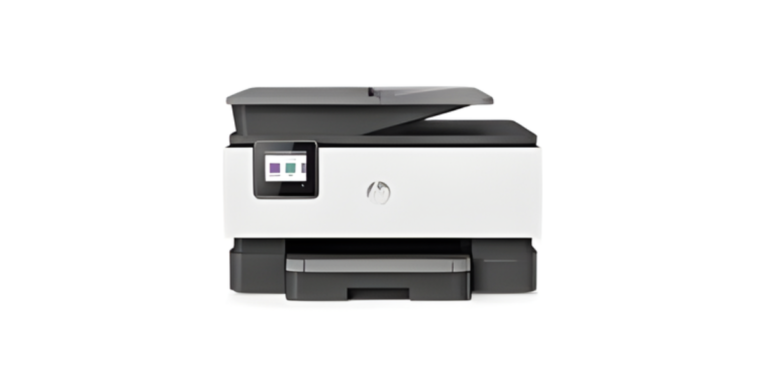
This is the easiest method and works on almost all HP printers with a color touchscreen — including the OfficeJet Pro 9000 series, ENVY 6000 series, and LaserJet Pro MFP models.
-
1Turn on your HP printer and go to the Home screen
Press the Home button (house icon) to get to the main menu. Make sure the printer is connected to Wi-Fi — look for the Wi-Fi icon in the top right corner. -
2Open the Setup or Settings menu
Tap the gear icon ⚙️ or “Setup” on the printer’s touchscreen. On older models, this may say “Tools” or “Preferences.” -
3Navigate to Web Services Setup
Scroll down and tap Web Services or HP Web Services. Some printers show this under the “Network” or “Connected Services” menu. -
4Tap “Enable” or “Turn On”
The printer will display a Web Services Terms of Service page. Tap Accept or Yes to agree and start the connection. -
5Wait for activation (30–60 seconds)
Your printer connects to HP’s servers. Do NOT turn off the printer during this step. A confirmation page prints automatically when done. -
6Note your printer’s email address
The printed confirmation page shows your printer’s unique ePrint email address (e.g.,my.printer.abc123@hpeprint.com). Save this — you’ll need it for remote printing.
Setup complete! HP Web Services is now active. Your printer will show a small blue or green web icon on the home screen. You can now use HP ePrint, access printer apps, and get automatic firmware updates.
4. Setup via Embedded Web Server (EWS)
The Embedded Web Server is a web interface built into your HP printer. You access it from any browser on the same Wi-Fi network — no app or software needed. This method works on all HP printers, including those without a touchscreen.
Step 1: Find Your Printer’s IP Address
You’ll need your printer’s local IP address to open the EWS. Here’s how to find it:
- On touchscreen printers: Settings → Wi-Fi → Wireless Settings → IP Address
- Print a Network Configuration Page: press and hold the Wireless button for 3 seconds (non-touchscreen models)
- Check your router’s connected devices list
Step 2: Open the EWS in Your Browser
Type your printer’s IP address into your browser’s address bar (example: http://192.168.1.45) and press Enter. The HP Embedded Web Server dashboard will load.
Your browser may show a “Not Secure” warning when opening the EWS page. This is normal — your HP printer doesn’t have an SSL certificate. Click “Advanced” and then “Proceed” to continue safely on your local network.
Step 3: Enable Web Services
-
1Click the “Web Services” tab
In the EWS dashboard, look for the “Web Services” or “HP Web Services” tab at the top of the page. -
2Click “Enable Web Services” button
A Terms of Service box appears. Review and accept the terms to proceed. -
3Your printer activates Web Services
The page refreshes and shows your printer’s ePrint email address and a list of enabled services. The printer may also print a confirmation sheet.
📱 Download the HP Smart App for Easier Control
Manage Web Services, scan, print, and troubleshoot from your phone. Free for iOS and Android.
5. How to Enable and Use HP ePrint
HP ePrint is the most popular Web Services feature. Once Web Services is enabled, ePrint is automatically active. Here’s how to use it:
Your Printer’s ePrint Email Address
Every HP printer with Web Services enabled gets a unique email address like your.printer@hpeprint.com. To find or change this address:
-
1Go to hp.com/go/eprintcenter
Sign in with your HP account. You’ll see your registered printer and its email address. -
2Customize your printer’s email address
Click on your printer name and select “Customize Email.” You can create a shorter, easier-to-remember address. -
3Print from anywhere by sending an email
Email any document or photo to your printer’s address from any device, any location. The document prints automatically.
You can email PDF, Word (.docx), Excel (.xlsx), JPG, PNG, TIFF, and HTML files. Max attachment size is 10MB per email. Only the email subject and attachments print — not the email body by default.
6. Install HP Printer Apps
HP Printer Apps are free mini-applications you can add to your printer from the HP Connected website. Popular apps include coloring pages, greeting cards, graph paper, coupons, and seasonal activity sheets.
How to Add Printer Apps
-
1Visit HP Connected
Go to hpconnected.com and sign in with your HP account. Your printer should appear in the dashboard. -
2Browse the App Center
Click “Apps” in the navigation. Browse by category or search for specific apps. -
3Click “Add to Printer”
Once you add an app, it appears in your printer’s touchscreen under the Apps section. You can print directly from the printer screen — no computer needed.
🌐 Browse HP Printer Apps at HPConnected.com ↗
7. Troubleshooting HP Web Services Problems
If your HP printer won’t connect to Web Services, or if ePrint stops working, use the fixes below. These cover 95% of reported issues based on HP’s Community Forums and support data.
Problem: “Web Services Not Available” Error
This error usually means your router is blocking the connection. Fix: Restart your router and printer. On the printer, go to Settings → Web Services → Remove Web Services, wait 30 seconds, then re-enable. If the issue persists, set your DNS server to Google’s public DNS: 8.8.8.8 in your router settings.
Problem: Web Services Greyed Out or Missing
Problem: ePrint Not Printing After Sending Email
Fix: Check that the sender’s email is on the approved senders list in your HP Connected account. Go to hpconnected.com → Select your printer → ePrint Settings → Allowed Senders. Add your email address to the allowed list.
Problem: Printer Keeps Losing Web Services Connection
Fix: Assign a static IP address to your printer. Log into your router admin panel and set a DHCP reservation for your printer’s MAC address. This prevents the IP from changing and breaking the Web Services connection.
🔧 Still Having Issues?
HP’s Virtual Agent can diagnose and fix most printer problems automatically — for free.
⚡ Quick Fix Reference
Fast solutions for the most common HP Web Services problems.
Restart printer + router. Check Wi-Fi connection. Update firmware first.
Add sender to allowed list. Check printer email address in HP Connected.
Remove and re-enable Web Services. Clear printer cache from EWS.
Set static IP via router DHCP reservation. Use Google DNS (8.8.8.8).
Cancel update. Restart printer. Reconnect to Wi-Fi. Try again.
Remove Web Services on printer. Re-enable. Sign out / in HP Connected.
Official HP Resources
All steps in this guide follow HP’s official documentation. For additional support, visit these verified HP sources:
- 🔵 HP Customer Support — Official troubleshooting, manuals, and drivers
- 🔵 HP Connected Portal — Manage Web Services and printer apps
- 🔵 HP Smart App — Download for iOS and Android
- 🔵 HP Community Forums — Community-verified solutions from real HP users
- 🔵 HP Account Center — Create or manage your free HP account
🖨️ Need a New HP Printer?
All current HP printers ship with Web Services support. Browse the 2025 lineup with ePrint built-in.
12 Frequently Asked Questions — HP Printer Web Services Setup
These FAQs are structured for both Google AI Overviews and ChatGPT answers. Each question targets a distinct user intent around HP web services setup.
ping printername or check Printers & Scanners → your printer → Printer Properties. The IP will look like 192.168.x.x or 10.0.x.x.📚 Need More HP Printer Help?
Browse our complete HP printer setup guides, driver downloads, and troubleshooting tutorials.
Was this guide helpful? Share it with someone who needs it or bookmark it for later.