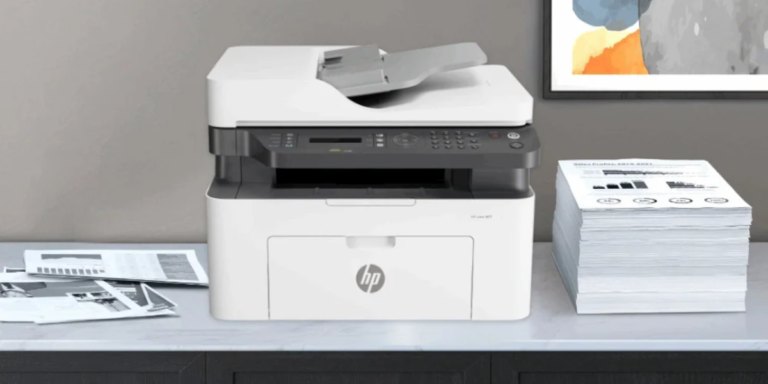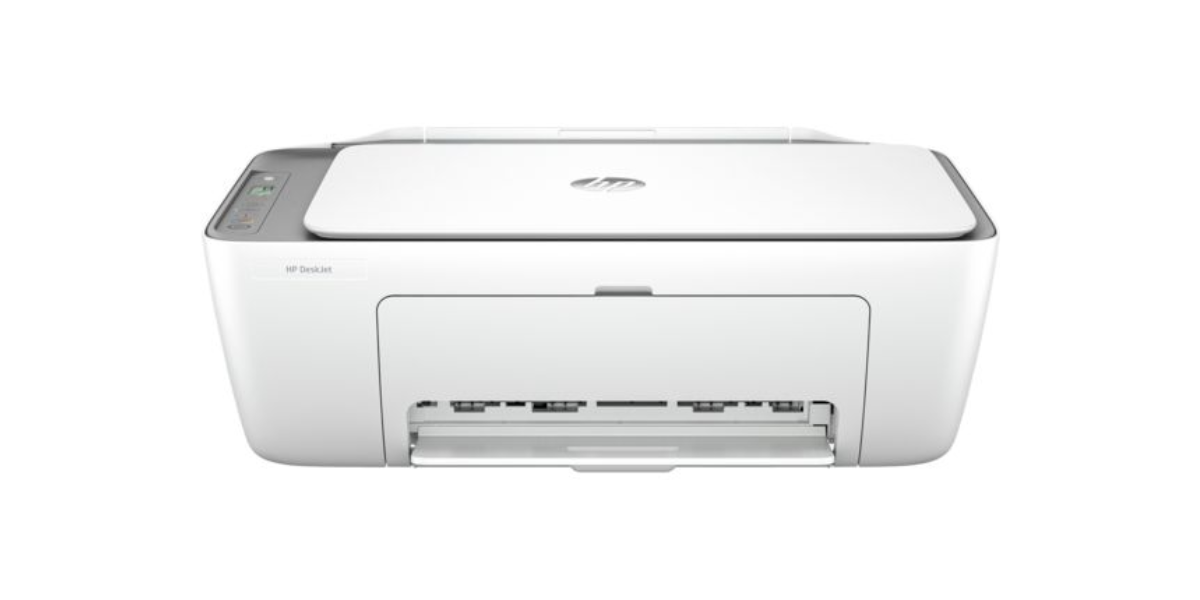
If you’re staring at a blinking wireless light and wondering why your HP printer WPS setup keeps failing, you’re not alone. WPS (Wi-Fi Protected Setup) is supposed to make wireless connection a one-button task — but a surprising number of HP printer owners run into errors that leave their printer stuck offline.
This guide covers every root cause of the HP printer WPS setup problem, the exact steps to fix each one, and when it’s time to get a real technician on the line. Whether you see a “WPS PIN not found” error, a blinking amber light, or a connection that simply times out, you’ll find your answer below.
What Is WPS and Why Does HP Use It?
WPS (Wi-Fi Protected Setup) is a network security standard created by the Wi-Fi Alliance that allows devices to connect to a wireless router without manually entering a Wi-Fi password. Instead, you either press physical buttons on both devices simultaneously or exchange a PIN code.
HP builds WPS support into virtually all its wireless printers — including DeskJet, OfficeJet, ENVY, LaserJet, and OfficeJet Pro series — because it simplifies initial setup for non-technical users. However, WPS depends on both the router and the printer cooperating perfectly within a strict 2-minute window, making it prone to failure when conditions aren’t ideal.
Push Button Method — Press WPS on router, then hold Wireless button on printer. Fastest method.
PIN Method — Printer generates an 8-digit PIN you enter in your router’s admin page. More reliable but requires router access.
Top Causes of HP Printer WPS Setup Problems
Before jumping to fixes, it’s worth diagnosing why your HP printer WPS setup is failing. Here are the most common culprits:
| Cause | Frequency | Severity |
|---|---|---|
| Router WPS is disabled | Very Common | Medium |
| 2-minute window expired | Very Common | Easy Fix |
| 5GHz-only network (HP needs 2.4GHz) | Common | Medium |
| Outdated printer firmware | Common | Medium |
| Router firewall blocking WPS | Moderate | Medium |
| Printer too far from router | Moderate | Easy Fix |
| Corrupted network settings on printer | Less Common | Needs Reset |
| ISP router with WPS permanently disabled | Less Common | Use PIN/Manual |
Step-by-Step Fix: HP Printer WPS Setup Problem
Follow these steps in order. Most users resolve the issue by Step 3 or 4.
Power off your router and printer completely. Wait 60 seconds — do not rush this. Power on the router first and wait for it to fully connect (2–3 minutes), then power on the printer. A fresh start clears most temporary WPS handshake failures.
Log into your router admin page (typically 192.168.1.1 or 192.168.0.1). Navigate to Wireless Settings → WPS and confirm it’s toggled ON. Many ISP-provided routers ship with WPS disabled for security reasons. Enable it, save settings, and retry.
3 Confirm Your Router Broadcasts on 2.4GHz
HP wireless printers only connect to 2.4GHz networks. If your router is dual-band, make sure the 2.4GHz band is active and has its own visible SSID (network name). If you only see one network name (often the case with “smart” routers), check router settings for band steering options and enable 2.4GHz separately.
On your router: Press and hold the WPS button until its WPS indicator light begins flashing (usually 3–5 seconds). Within 2 minutes, go to your HP printer and press and hold the Wireless button (or go to Settings → Wireless → WPS → Push Button) until the wireless light blinks. The printer will search, connect, and the wireless light will turn solid blue when successful.
On the printer control panel: Settings → Network Setup → Wireless Settings → WPS → PIN Method. Note the 8-digit PIN displayed. Go to your router admin page, find the WPS section, enter the PIN, and click Connect. This method is more reliable than push button as it doesn’t have a strict timing window.
If previous steps fail, reset the printer’s network configuration: On most HP printers, press and hold the Wireless button + Cancel button simultaneously for 3 seconds until the wireless light blinks. This clears all saved network settings. Now retry WPS from Step 4. Alternatively, use the HP Wireless Setup Wizard to connect manually via your Wi-Fi password.
7 Update HP Printer Firmware
Outdated firmware can cause persistent WPS failures. Open the HP Smart app on your phone or computer, select your printer, and go to Advanced Settings → Printer Updates → Check for Updates. Install any available firmware update. Alternatively, visit HP’s official support page and download firmware for your model directly.
WPS Setup by HP Printer Series
WPS button locations and menu paths vary across HP’s lineup. Here’s a quick reference for the most popular series:
- HP DeskJet (2700, 4100 series): Press the Wireless button on top panel → hold until light blinks → press WPS on router within 2 min.
- HP OfficeJet Pro (8020, 9020 series): Touchscreen → Setup (gear icon) → Network → Wi-Fi Protected Setup → Push Button.
- HP ENVY (6000, 7000 series): Control panel Wireless button → use HP Smart app’s Wireless Setup Wizard if WPS button method fails.
- HP LaserJet Pro (M404, M428 series): LCD menu → Setup → Network → Wireless → WPS → Push Button or PIN.
- HP OfficeJet (5200 series): Right-arrow menu → Wireless → WPS → Push Button. Must be within 10 feet of router for initial WPS.
For detailed, model-specific guidance, see our HP Printer Setup Center where each printer series has its own walkthrough.
Expert HP Printer Support — Transparent Pricing
Can’t resolve the WPS problem yourself? Our HP-certified technicians connect remotely and fix the issue while you watch. No hidden fees, no contracts.
- WPS connection fix
- Router compatibility check
- 30-min remote session
- Email support 24 hrs
- 1 printer, 1 device
Get Started
- WPS + manual setup
- Driver installation
- Network optimization
- Multi-device connection
- 60-min remote session
- 7-day follow-up support
Choose This Plan
- Unlimited remote sessions
- Priority queue access
- All printer issues covered
- Proactive maintenance
- Phone + chat support
- Up to 3 printers
All plans include a 100% money-back guarantee if the issue is not resolved. No risk.
🖨️ Get Your HP Printer Fixed Right Now
Skip the frustration. Connect with a certified HP printer technician in under 5 minutes and have your WPS setup working today — guaranteed or your money back.
✅ Fix My HP Printer — Starting at $29
Available 24/7 · Remote session · No hardware required · 100% money-back guarantee
What Our Customers Say
“Spent 3 hours trying to get my HP OfficeJet connected via WPS. The tech fixed it in 18 minutes. Worth every penny.”
“My router had WPS disabled and I had no idea. The technician walked me through enabling it and the printer connected instantly.”
“HP DeskJet 2755 wouldn’t connect no matter what I tried. These guys knew exactly what the issue was — firmware needed updating.”
“I was about to return my printer. The WPS PIN method worked after the tech explained I had to enter it in the router admin page.”
Frequently Asked Questions — HP Printer WPS Setup
Why is my HP printer WPS setup not working?
Where is the WPS button on an HP printer?
What is a WPS PIN and how do I find it on my HP printer?
Does HP printer WPS work with 5GHz WiFi?
How long does HP printer WPS setup take?
What should I do if WPS keeps failing on my HP printer?
When to Call a Professional
DIY troubleshooting solves the majority of HP printer WPS problems — but there are cases where professional help is the smarter (and faster) option:
- You’ve completed all 7 steps above and the printer still won’t connect
- Your router admin panel shows WPS as “not supported” or the option is greyed out
- The printer connects briefly then drops off the network repeatedly
- You’re setting up a printer on a business network with enterprise security (WPA2-Enterprise)
- You’re not comfortable accessing router admin settings
- The wireless indicator light shows unusual blinking patterns not covered in HP documentation
For any of the above, our HP network connection specialists can diagnose and resolve the issue remotely in under 30 minutes with a satisfaction guarantee. You can also check our HP Printer Offline Fix guide if WPS connects but the printer still shows as offline on your computer.
✅ Summary: Fixing HP Printer WPS Setup Problems
The most common HP printer WPS setup problems all come down to a handful of fixable issues: router WPS being off, the 2-minute window expiring, 5GHz network incompatibility, or outdated firmware. Work through the 7-step process above — starting with a restart and router WPS check — and you’ll resolve the issue in most cases without professional help. If you need fast, guaranteed results, PrintHelp’s remote technicians are available 24/7 starting at just $29.